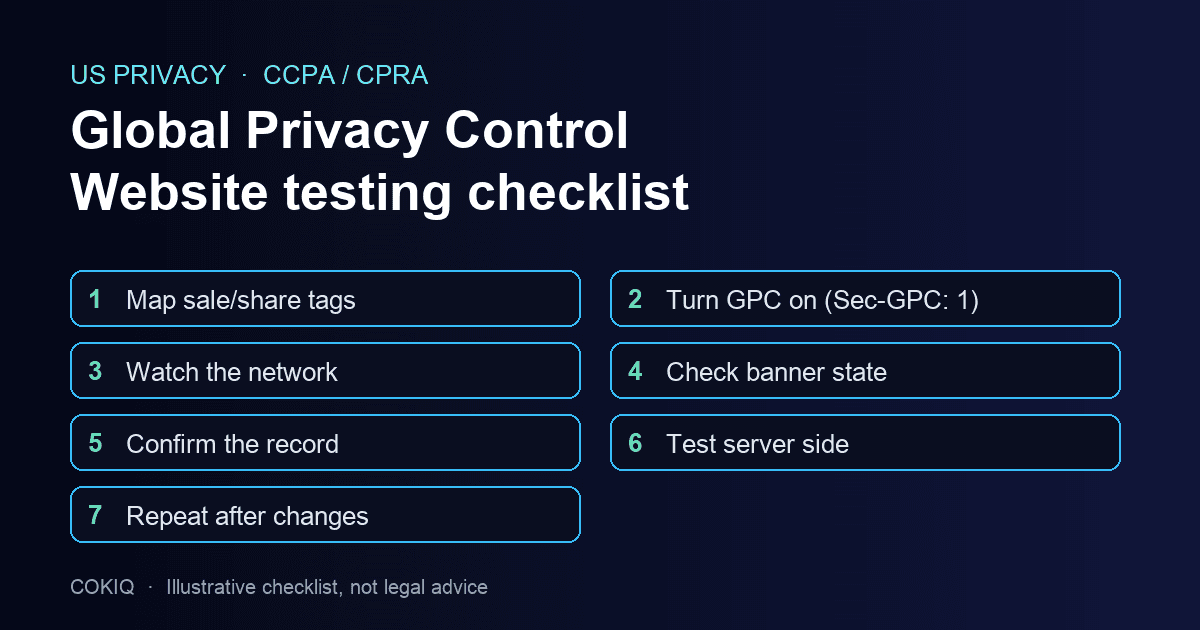
If a visitor's browser sends Global Privacy Control, your website should treat it as a request to stop selling or sharing their personal information, and that request should change what actually loads on the page. The fastest way to know whether your site does this is to test it: turn the signal on, load your key pages, and confirm that advertising and cross-context tracking tags stay off and that the opt-out is recorded.
This matters more in 2026 than it did a year ago. On 9 September 2025 the California Privacy Protection Agency and the Attorneys General of California, Colorado and Connecticut announced a joint investigative sweep of businesses that may not be processing opt-out requests sent through GPC (CPPA announcement). Earlier, in July 2025, the California Attorney General announced a $1.55 million CCPA settlement with Healthline Media that included allegations of continuing to share data with advertising-related third parties after consumers opted out, and reminded businesses that opt-outs submitted through GPC must be honored (California AG press release).
This checklist is written for marketing, web and privacy owners who need evidence, not assumptions. It is operational guidance, not legal advice.
What the GPC signal is, and what it is not
The W3C Global Privacy Control specification defines two ways a browser can express a do-not-sell-or-share preference: the Sec-GPC: 1 HTTP request header and the navigator.globalPrivacyControl property in JavaScript (W3C GPC specification). Some browsers send it by default and others need a setting or an extension.
The specification is deliberately narrow. GPC is designed to opt a person out of the sale of their data, sharing with third parties, and cross-context targeted advertising. It is not a deletion request, and it is not designed to cover first-party analytics within the same context. That scope should shape your test: the question is whether sale and sharing stop, not whether every cookie disappears.
Step 1: Map which tags count as sale or sharing
You cannot test GPC handling without a list of what should switch off. Run a scan of your main templates (home, product or service pages, checkout or signup, blog) and group every script into necessary, analytics, preferences and marketing. Advertising pixels, retargeting tags, affiliate trackers and data-sharing integrations usually belong in the marketing group, which is what GPC should affect.
Write down the expected result per tag: "off when GPC is on", "unaffected", or "needs review". Unknown scripts are the usual weak spot. If you cannot say who owns a tag and what data it sends, treat it as sale or sharing until someone proves otherwise. A cookie scan gives you the starting inventory; the cookie audit checklist helps you classify it.
Step 2: Turn the signal on in a clean browser
Use a fresh browser profile with no saved consent. Enable GPC through the browser's privacy setting or a GPC extension, then confirm it is really on:
- Open the developer console and run
navigator.globalPrivacyControl. It should returntrue. - In the network panel, open the document request for your page and check that the request headers include
Sec-GPC: 1.
Repeat this in a second browser if your audience uses several. Record the browser, version and method used to enable GPC, so the test can be repeated later.
Step 3: Load key pages and watch the network
With GPC on and no prior choice, load each page in your template list. In the network panel, filter for the domains of the advertising and sharing tags from Step 1. The pass condition is simple: none of the "off when GPC is on" tags should load or send requests, before or after the page settles.
Then interact the way a visitor would. Scroll, open a product, add to cart or start a form. Some tags load late or on events, and a test that only checks the first second will miss them. Note anything that fires, the request URL, and which page triggered it.
Step 4: Check the visitor-facing state
A GPC-honoring site should not ask the visitor to opt out again. Open your preference center or banner and check what it shows. The marketing or "sale/share" option should already be off, and ideally the panel explains why. If the banner lets the visitor turn marketing on, decide how your policy handles a conflict between GPC and an explicit choice, and make sure the behavior matches what your privacy notice says.
The California Attorney General's GPC guidance is a useful reference for how the state describes the signal (California AG: Global Privacy Control). Your privacy policy should describe how you process opt-out preference signals; check that the text and the tested behavior agree.
Step 5: Confirm the opt-out is recorded
Evidence is what a sweep letter will ask for. After the test visit, check your consent records for that session. You want to see the GPC state stored with the record, the categories that were applied, a timestamp and the policy version. If your records only store "accepted" or "rejected" button clicks, a GPC visitor who never touched the banner may leave no trace at all.
Also test a returning visitor: give consent with GPC off, then switch GPC on and reload. A stored "accept all" from before should not keep marketing tags running once the signal is present. Our guide to consent logging covers what a usable record contains.
Step 6: Test the server side and third parties
Client-side blocking is only half of the picture. If your site shares data server to server, for example through a conversion API, a customer data platform or an affiliate postback, those flows will not be stopped by a banner script. Check whether your server reads the Sec-GPC header or the stored consent state before sending data, and list each integration with its result.
Ask the same question of embedded tools: chat widgets, video players, review widgets and A/B testing tools can all set their own trackers. Note which vendors document GPC handling and which do not.
Step 7: Make it a regression test
GPC handling breaks quietly. A new tag added through a tag manager, a theme update or a marketing experiment can reintroduce a pixel outside the consent gate. Add the GPC test to your release checklist and run it at least monthly and after any tag, CMP or template change. Keep a short evidence record each time:
- Date, tester, browser and GPC method
- Pages tested and interactions performed
- Tags expected off and tags observed
- Banner or preference-center state
- Consent record reference for the test session
- Server-side integrations checked and result
- Issues found, owner and fix date
Common failures we see in GPC tests
The same problems appear again and again. Tags hard-coded in the page template outside the tag manager, so the consent tool cannot block them. A tag manager trigger that fires on "page view" rather than on a consent-aware trigger. A stored consent cookie from before GPC was enabled that keeps winning. A banner that is suppressed for US visitors and therefore never applies the signal at all. And server-side conversion forwarding that ignores the visitor's state entirely.
Each one is fixable, but only after a test shows it. That is why the checklist starts with an inventory and ends with a repeatable record.
How COKIQ supports GPC testing
COKIQ's banner script reads the browser's navigator.globalPrivacyControl signal. While GPC is active, it keeps the marketing category off, explains that state in the preference panel, and stores the GPC flag with the visitor's consent record, so a previously stored choice made without GPC is re-evaluated. The scanner helps you build the tag inventory in Step 1, and consent records give you the evidence for Step 5. Server-side flows and third-party vendors still need the checks in Step 6.
See how COKIQ approaches CCPA and CPRA readiness, compare plans, or start with a free scan and run the checklist on your own site.