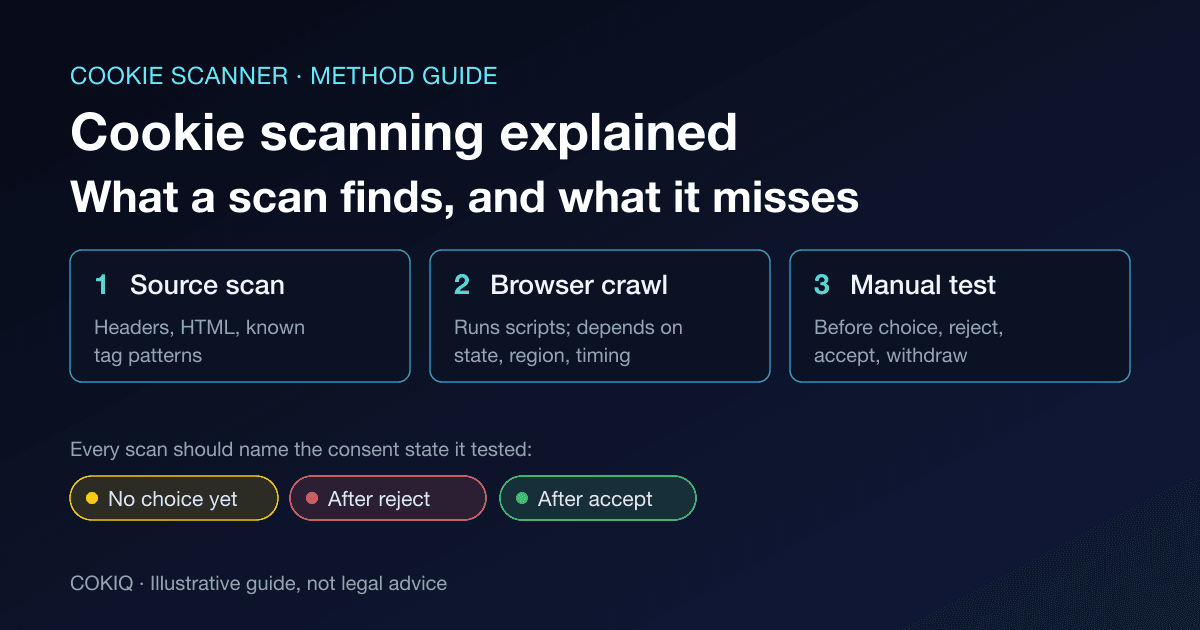
You run a cookie scan and get a tidy list. A colleague runs a different tool on the same page and gets a longer one. Someone else opens the browser developer tools and finds a tracking request that neither list mentions. All three can be accurate, because "cookie scanning" covers several different methods, and each method answers a different question.
Knowing which method a tool uses tells you what its result actually proves. That is the difference between a scan that gives you false comfort and one that gives you a fix list.
Why scan quality matters more now
Regulators test websites the way a careful visitor would. In December 2025 the UK Information Commissioner's Office reported on its review of the UK's top 1,000 websites (ICO announcement). The assessment focused on three questions:
- Were non-essential advertising cookies stored before visitors could accept or reject them?
- Was rejecting as easy as accepting?
- Were non-essential advertising cookies placed even though the visitor had not consented?
The ICO said 979 of the 1,000 sites met its checks at their most recent test, many of them only after letters, investigations or, in 17 cases, preliminary enforcement notices. It also said it will keep testing those sites periodically.
Notice that none of those three questions can be answered by a list of cookie names. They are about timing and state: what loads before a choice, and what loads after a reject. A useful scanning routine has to cover both.
The three ways websites get scanned
1. Source and header inspection
The scanner requests the page the way a browser would, then reads what comes back: the Set-Cookie response headers, the HTML, inline scripts and the URLs of the scripts the page loads. It matches those against known patterns, such as Google Tag Manager, Google Analytics, Meta Pixel, Microsoft Clarity or a third-party consent platform.
This method is fast, safe to run on any public page and very repeatable. It is excellent for building an inventory of which tools a page includes. Its limit is that it does not execute JavaScript, so a cookie created later by an external script will not appear as a cookie. It will usually appear as the script that sets it, which is still the thing you need to control.
2. Headless browser crawling
The scanner loads pages in a real browser engine, runs the scripts and records cookies, local storage and network requests. It sees more, but the result depends heavily on the conditions the crawler simulates: which pages it visits, how long it waits, whether it clicks the banner, and where its servers are located.
3. Manual browser testing
A person opens the site in a clean browser profile with the developer tools open, and checks cookies, storage and network requests before a choice, after reject and after accept. It is the slowest method, but it is the only reliable way to test reject behaviour, late-firing tags, logged-in areas and steps like add-to-cart.
Why two scanners give different results
When results disagree, one of these is usually the reason:
- Consent state. A scan with no choice made, one after "accept all" and one after "reject" should produce three different lists. If a tool does not say which state it tested, you cannot interpret the result.
- Location. Many consent setups show a banner only in some regions. A crawler running from a data centre in another country may never see your banner and may record tags your real visitors never get, or the reverse.
- Timing and interaction. Some tags load after a delay, on scroll, on a click or on a form step. A scan that measures the first few seconds of a page load will miss them.
- Which pages were checked. A single-URL scan of the homepage says little about a paid landing page with its own pixels, or a checkout with payment and fraud scripts.
- Storage beyond cookies. The rules are not limited to cookies. The EDPB's guidelines on the technical scope of Article 5(3) of the ePrivacy Directive (final version, October 2024) discuss techniques such as tracking pixels and URL-based tracking (EDPB Guidelines 2/2023). The ICO's guidance is titled "storage and access technologies" for the same reason, and covers tracking pixels and link decoration as well as cookies (ICO guidance). A scan that only lists cookies leaves part of the picture out.
- Classification. Tools label cookies by matching names against their own database. A generic name like
sessionoruidcan be labelled very differently, and unknown names often end up uncategorised.
What a source scan is good for, and how COKIQ's free scan works
COKIQ's free website scan is a source and header inspection. It fetches the public page you enter and reports:
- cookies set in the server's
Set-Cookieheaders or written by inline scripts on the page, - recognisable analytics, advertising, chat, video and commerce scripts,
- other consent platforms already on the page, and whether the COKIQ script is installed,
- privacy and policy links it can find,
then groups the findings into Necessary, Analytics, Marketing, Preferences and Unknown, with plain-English recommendations. It checks one page per scan, and it does not run the page's JavaScript or click the banner.
That makes it a good first pass and a good regression check. If it finds a Meta Pixel script in your page source, you know the pixel needs a consent gate, even before the pixel has had a chance to set its cookie. If it finds a second consent platform, you know two tools may be competing. The cookie scanner docs explain how to classify what it finds. What it cannot tell you is whether those scripts actually stay off before a choice and after a reject. For that you need the browser tests below.
A reliable cookie scanning routine
Step 1: Choose representative URLs
Do not scan only the homepage. Pick your homepage, the landing page that receives the most paid traffic, a product or service page, a blog article, the start of signup or checkout, and any page with video, maps, reviews or chat embeds. Templates differ, and so do the tags on them.
Step 2: Build the inventory with a source scan
Scan each URL and record every script and cookie by category. Mark anything you cannot explain as "needs review" and find its owner. Unknown tags are where most surprises come from.
Step 3: Test before any choice
Use a fresh browser profile with no saved consent, ideally from the region your visitors are in. Load the page and do not touch the banner. In the developer tools, check the Cookies and Local Storage panels, then filter the Network panel for the analytics and advertising domains from your inventory. Anything outside the strictly necessary group that appears here is the first thing to fix.
Step 4: Test reject
Check that rejecting takes no more effort than accepting. Click reject, reload, browse two or three pages, scroll and use a form. No marketing or analytics cookies, storage entries or requests should appear, unless your rules for that market allow a specific exception and you have documented it.
Step 5: Test accept and withdrawal
Accept all and confirm the tags now load. This proves the consent gate works, rather than the tags simply being broken. Then withdraw consent through your preference link and reload. The tags should stop on the next page load.
Step 6: Keep the evidence
Record the date, URL, browser, region, consent state, what you saw and who owns each fix. Consent records from real visitors complete the picture; our guide to consent logging explains what a usable record contains.
Reading the results: what to fix first
- Marketing pixels that fire before a choice or after a reject. These map directly to the questions regulators test, and they usually come from tags hard-coded in a theme or a tag manager trigger set to fire on every page view.
- Analytics that fire before a choice where consent is required. In the UK, PECR now includes exceptions for some statistical-purpose and appearance cookies, provided visitors get clear information and a simple way to object. The ICO guidance above explains the conditions. These exceptions are UK-specific, so do not assume they apply in other markets.
- Unknown cookies and scripts. Give each one an owner, a purpose, a category and a retention period, or remove it.
- Duplicate consent tools or banners. Two platforms can each believe the other is in charge.
- Missing or broken policy links. The banner should point to the privacy and cookie policies that describe what you actually run.
If you run paid campaigns, the cookie audit before Google Ads checklist applies the same routine to landing pages. If you serve California visitors, add a browser-signal test from our Global Privacy Control testing checklist.
How often to scan
Rescan after every change that can add a tag: a new plugin or app, a theme update, a new pixel, a chat or booking widget, or a new tag manager container version. Run the full routine before a large campaign, and at least monthly as a baseline. Regulators retest, and tags drift back in when nobody is watching.
Start with the inventory
A cookie scan is the start of the job, not the end of it. Use a free COKIQ scan to see what your key pages load, then run the before-choice, reject and accept tests above. When you compare tools using our best cookie scanner guide, ask which of the three methods each one uses and which consent states it tests. When you are ready to put a consent banner and records in place, compare COKIQ plans. This article is operational guidance, not legal advice.